

Log, Decision and Task Board
WebEOC provides dedicated boards to record and manage information, decisions and actions.
| ❯ | Log Board captures significant information, observations and updates, creating a chronological record of incident activities. |
| ❯ | Decision Board documents key decisions, including the rationale behind them, supporting accountability and providing an audit trail. |
| ❯ | Task Board is used to assign, track and monitor actions, helping ensure tasks are completed and responsibilities are clearly understood. |
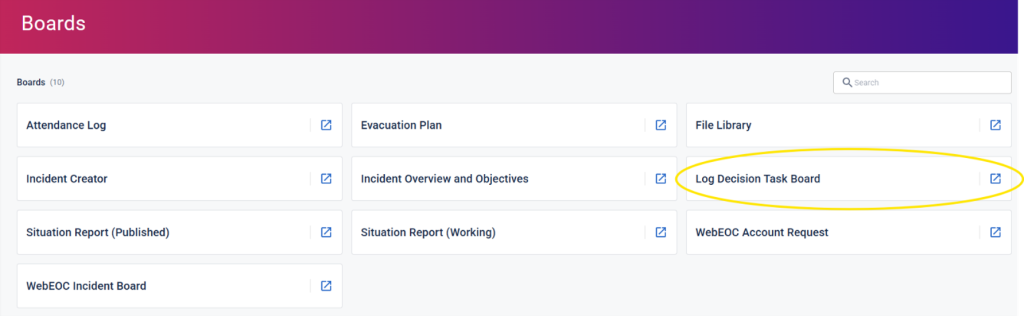
Running log
The Observation or Running Log provides users with a single location to record information for upcoming debriefs and lessons management.
This Observation Log records the “What went well and Why?” and the “What didn’t go well and Why?” during and after an incident. The running log is where you will input and find most information.
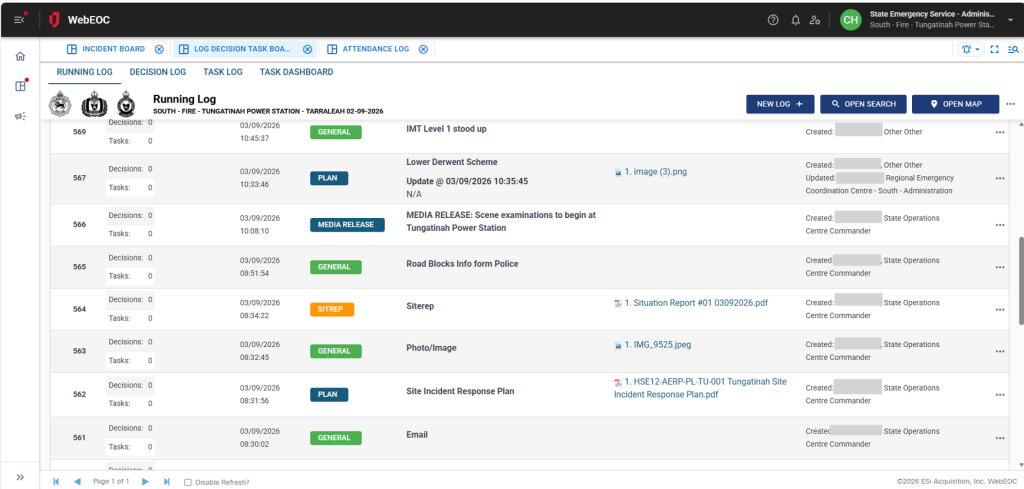
Using the Running Log
| ❯ | Open the Running Log tab and select New Log +. |
| ❯ | Enter the required information, including any relevant location details or attachments. |
| ❯ | Select Save to create the log entry. |
| ❯ | Existing logs can be viewed, updated または deleted using the options menu (…) beside each entry. |
| ❯ | Running logs are displayed in chronological order, with the most recent entry shown first. |
Decision Log
ザ Decision Board is used to record significant decisions made during an incident, including the rationale, decision maker and any supporting information.
Maintaining a clear record of decisions supports accountability, provides an audit trail and helps ensure a common understanding across stakeholders.
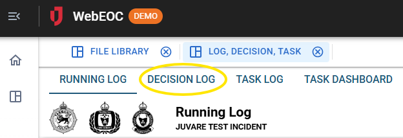
Using the Decision Log
| ❯ | Open the Decision Log tab and select New Decision +. |
| ❯ | Enter the required information, including the decision rationale, people involved and any supporting attachments. |
| ❯ | Select Save to create the decision record. |
| ❯ | Existing decisions can be viewed, updated または deleted using the options menu (…) beside each entry. |
| ❯ | Decision logs are displayed in chronological order, with the most recent entry shown first. |
Tasking Log
ザ Task Board is used to assign, manage and track actions during an incident.
It helps teams monitor task status, clarify responsibilities and ensure actions are completed in a timely manner, supporting coordination and accountability.
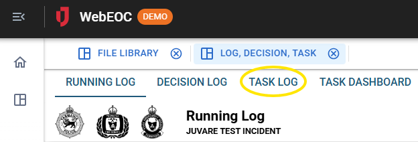
Using the Task Log
| ❯ | Open the Task Log tab and select New Task +. |
| ❯ | Enter the required information, including task details, assignment, location information and any supporting attachments. |
| ❯ | Select Save to create the task record. |
| ❯ | Existing tasks can be viewed, updated または deleted using the options menu (…) beside each entry. |
| ❯ | Task logs are displayed in chronological order, with the most recent entry shown first. |
Contact Details for WebEOC Support
To obtain access to WebEOC you will require an individual user account. To request a WebEOC User account please completed the attached form and email to WebEOCAdmin@police.tas.gov.au
Once a user account has been created you will receive you login details and associated instructions on accessing the system. To request a WebEOC demonstration, training or any other assistance please contact a WebEOC Administrator via email WebEOCAdmin@police.tas.gov.au
– Completion –